Multi-chart layouts: every chart keeps its own tools, maximise one, and your workspace syncs
In two- and four-chart layouts, each chart now keeps its own modules, drawings and indicators instead of following whichever chart you clicked. One chart can be maximised to the full layout and restored, and with any free account your drawings, indicators, templates, watchlist and chart layouts sync across devices.
Each chart keeps its own
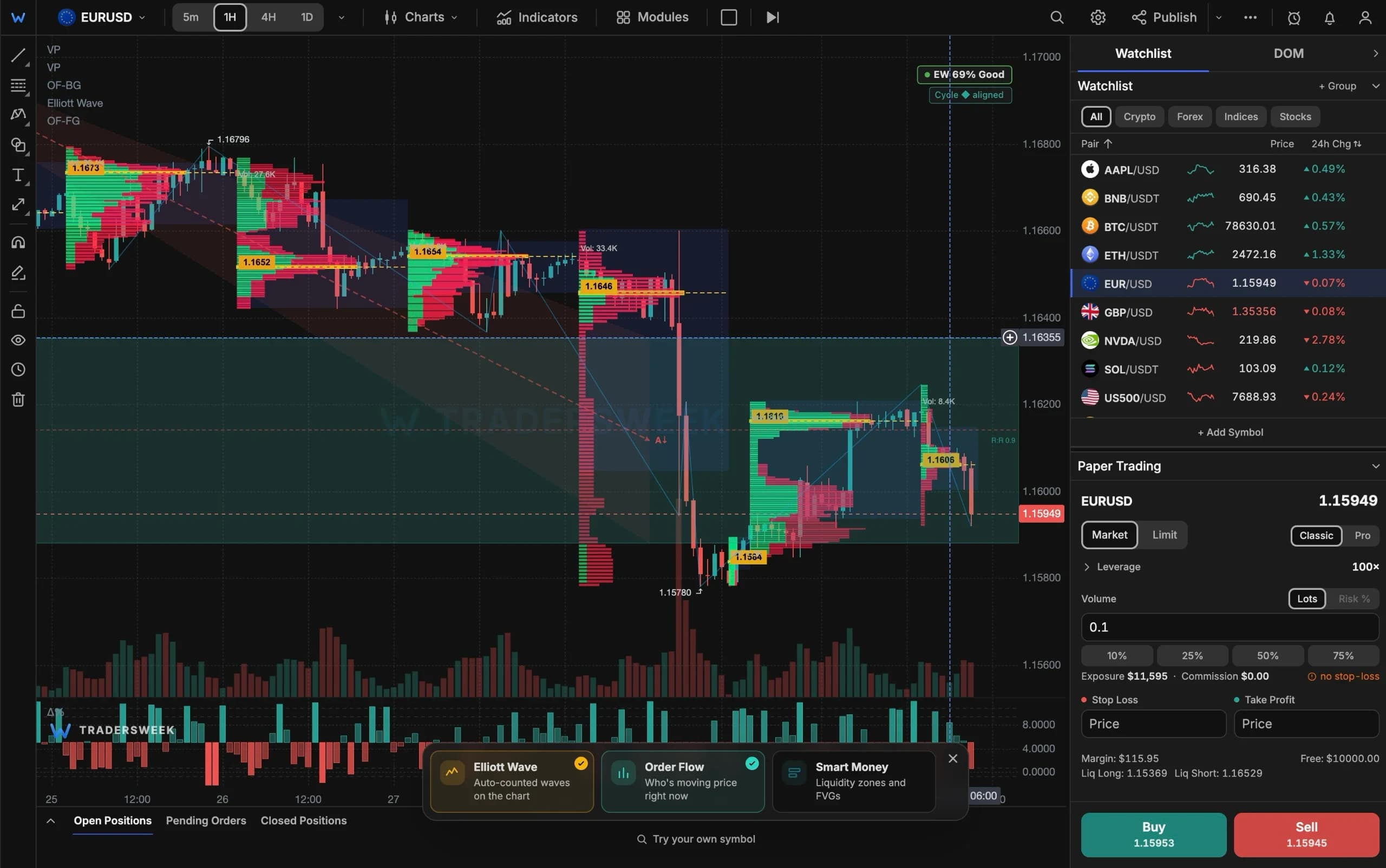
Traders running two or four charts side by side told us that some modules and drawings followed whichever chart they last clicked, or read the other chart's symbol. We went through the whole terminal for that class of problem. Now modules, drawings and indicators stay on the chart where you put them, and drawings saved on one chart no longer overwrite those of another.
One chart, full size
Maximize chart in a chart's header — or Alt+Enter — expands it to fill the layout; Restore layout brings the others back. The hidden charts stay loaded, so their drawings, indicators and modules are exactly as you left them.
Your workspace, on every device
Drawings used to live only in the browser where you made them. Now, with any free account, your drawings, indicators, chart templates, watchlist and chart layouts sync between devices — a line drawn on your laptop shows up on your phone within about a minute. A phone and a computer each keep their own layout, since a four-chart grid makes little sense on a small screen; everything else is shared.
Multi-chart layouts are part of Pro and free for every signed-in account until 1 January 2027. Pick a layout in the terminal's top bar.